Anonymous
Not logged in
Talk
Contributions
Create account
Log in
Search
Editing
Linux graphical encryption program
(section)
From KB42
Namespaces
Page
Discussion
More
More
Page actions
Read
Edit
Edit source
History
Warning:
You are not logged in. Your IP address will be publicly visible if you make any edits. If you
log in
or
create an account
, your edits will be attributed to your username, along with other benefits.
Anti-spam check. Do
not
fill this in!
== Create an encrypted VeraCrypt volume== Now it is time to create a _VeraCrypt_ volume. Click on the _Create Volume_ button. You can just create an encrypted file container. In short, it is a virtual folder which is encrypted. Or you can also encrypt the whole partition or the whole drive. Choose whatever you want the principle is basically similar for the two options. In this example, I will just create an encrypted container. ===Create an encrypted container=== 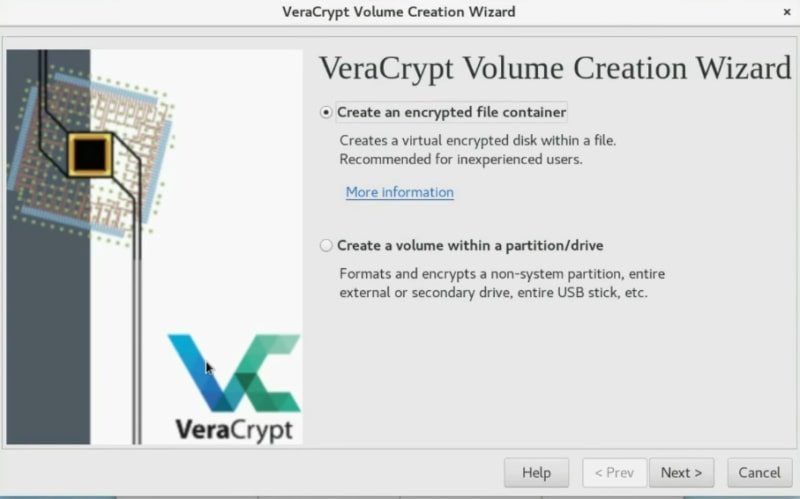 Veracrypt options: an encrypted file container or an encrypted partition/drive In the next screen, I suggest you use a standard _VeraCrypt_ volume but if you want more security, you can use the hidden volume option. I will choose to create a Standard VeraCrypt volume. 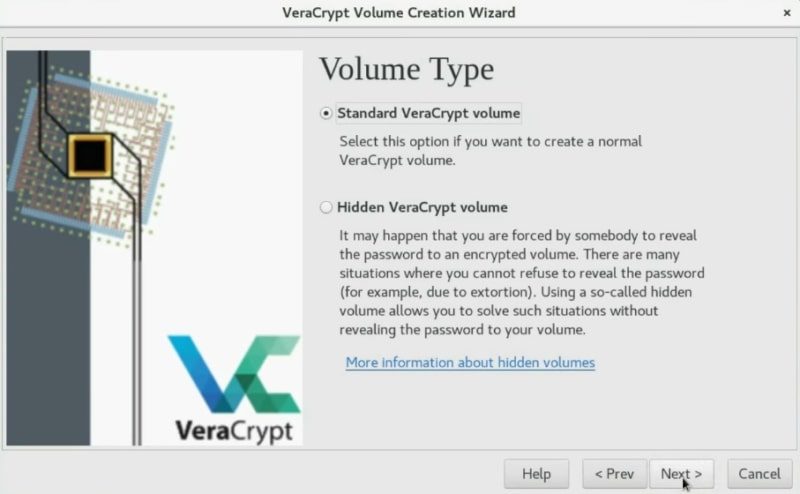 Choose the Veracrypt volume type In this section, you have to select where you want this encrypted volume to be located. Click on the _Select File_ button and set the place and name. After that, click on the _Next_ button. 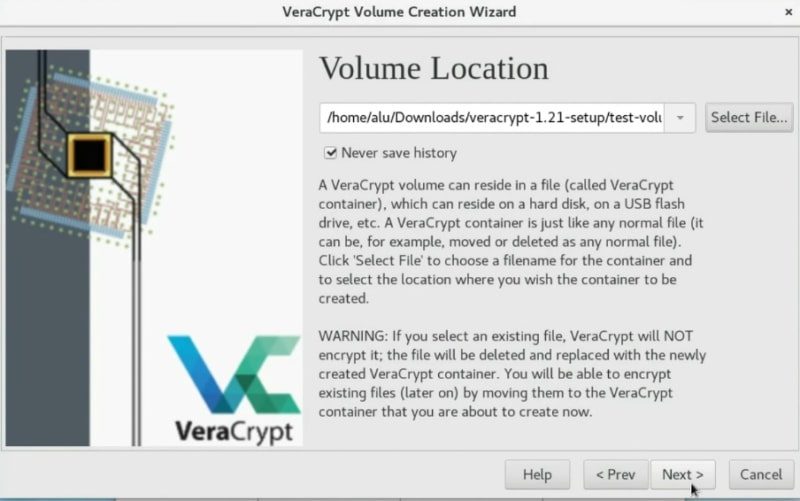 Set the Veracrypt Volume Location VeraCrypt provides several encryption algorithms like AES, Twofish or Camellia. I usually choose AES. This should be secure enough. Click on the _Next_ button. 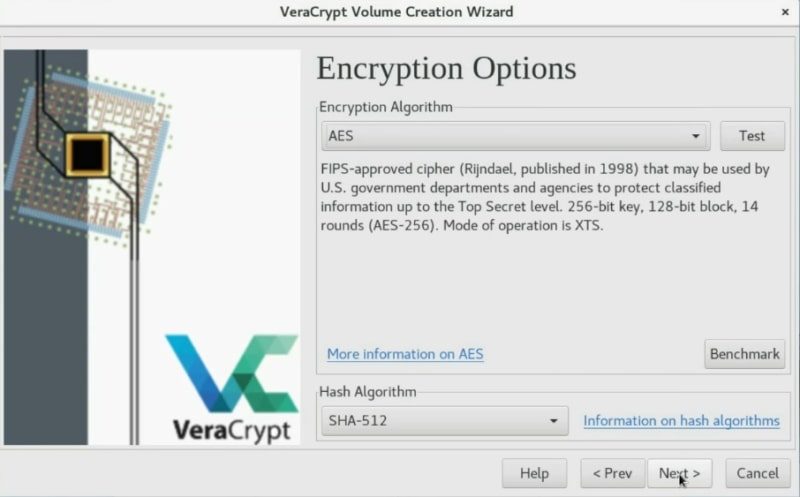 Select the algorithm encryption for the volume Now, you have to define the space of the container. Veracrypt shows you how much disk space is available and you can create a volume of this size or smaller. In my case, I will create a 1Gb volume. 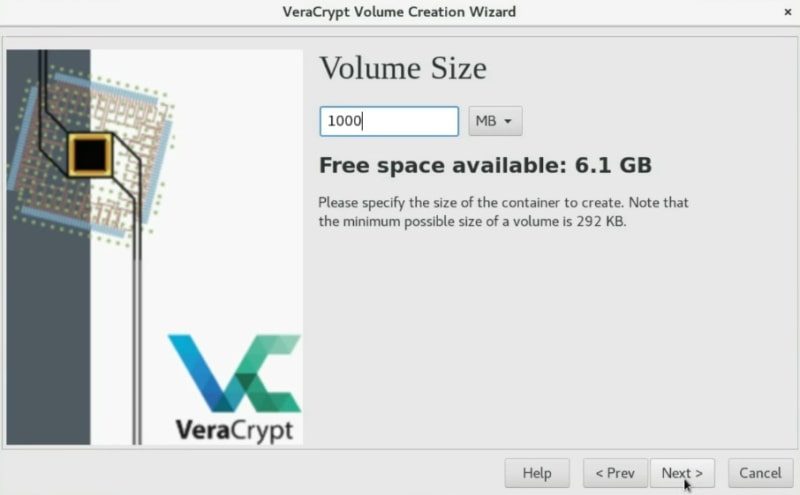 Define the volume size === Choose a security level (password, PIM, keyfile)=== Now, it is time to define your password. It will be used to decrypt the volume. You have to define a very strong one. 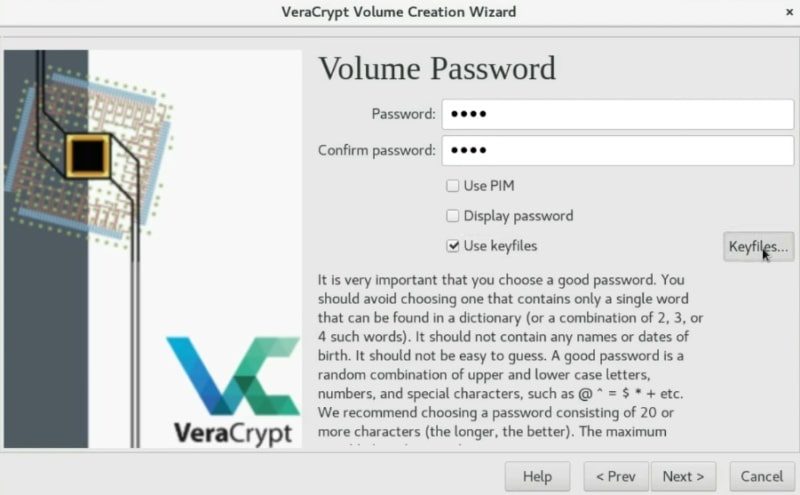 Set a volume password and the keyfile to decrypt the volume Usually, setting a password is secure enough. However, if you want to be your encryption as secure as possible, you can also enable the PIM option, this means you just need to specify a specific number during the mounting process. I never use it. If you want more security I recommend you to use a key file. This is a very useful option. So, I will create a KeyFile to show you the process. ==== Create a KeyFile==== To create a key file, just click on the _Generate random key file_ button. 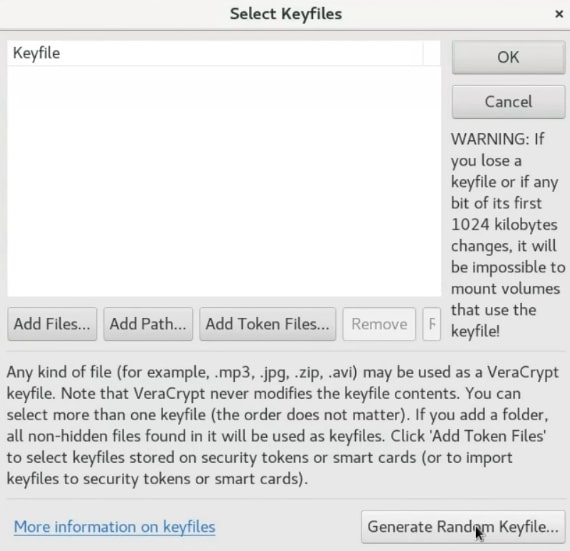 Generate a random keyfile You need to move your mouse randomly as much as possible to create some random numbers which will be stored in this key file. You can move it until the Randomness bar is completely full. After that, you give it a name, click on the _Generate and Save Keyfile_ option and choose a place to save it. 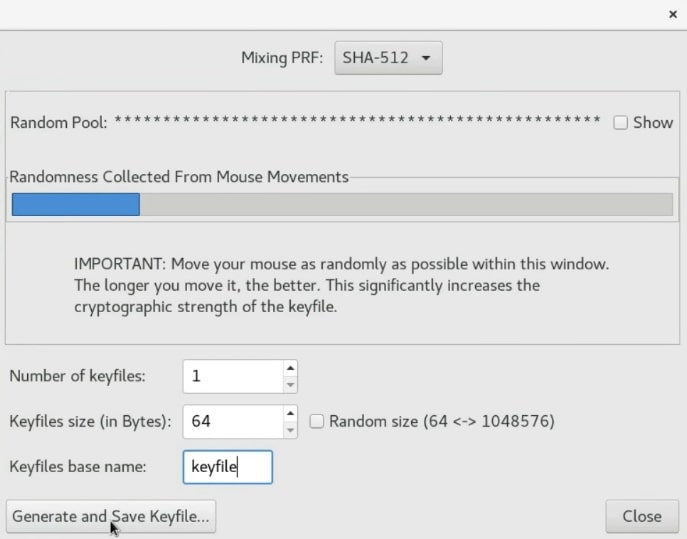 Now, you can generate and save the keyfile Once the keyfile is created, it is necessary to add it to the volume so that they are connected. Normally, the keyfile is generated in the same directory where VeraCrypt is located. In this case, `/home/alu/Download/`. So, Click on the _add_ button and select the keyfile. 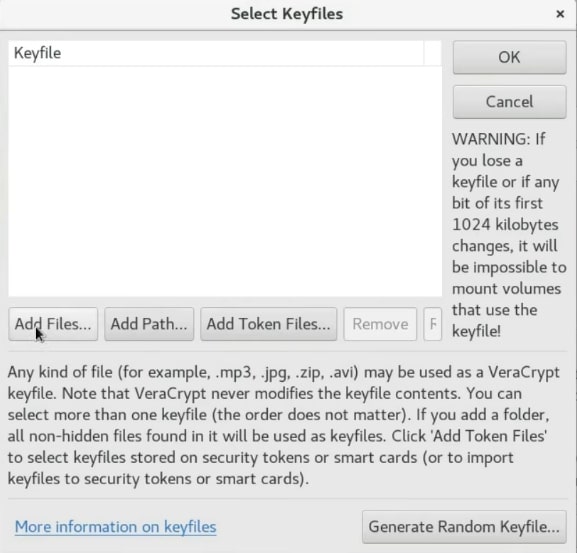 Add the keyfile to the volume Next, press the OK button. 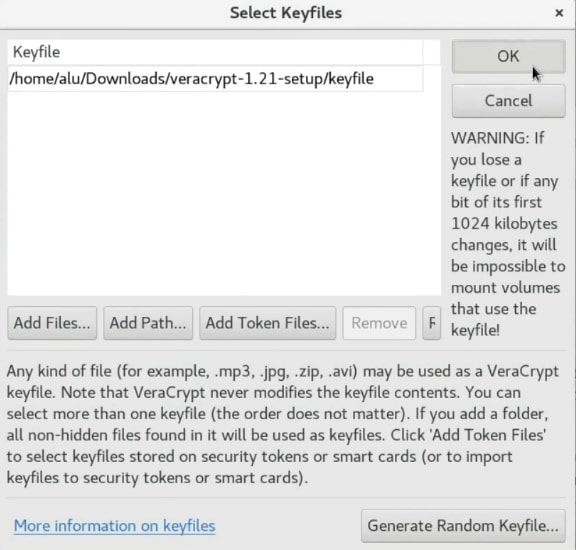 Press the ok button to add the keyfile Now, to unencrypt this volume you have to use the password and in addition to this, you also need to use a key file. I recommend storing the keyfile on your USB drive, for greater security. _NOTE that If you lose your key file you will not be able to unencrypt this volume. So, make sure you have a backup of this key file._ Next, click on the _Next_ button. 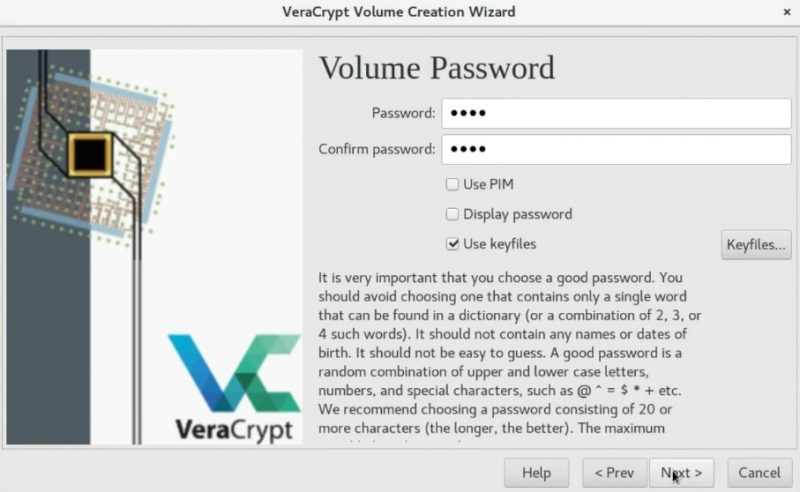 You can continue the volume creation === Choosing a new filesystem for the volume=== Using a Linux graphical encryption program, you can set the file system for the new volume system. So, If you are going to mount the volume in Windows and Linux, you should choose FAT, but if you will only use it for Linux you can choose EXT4. 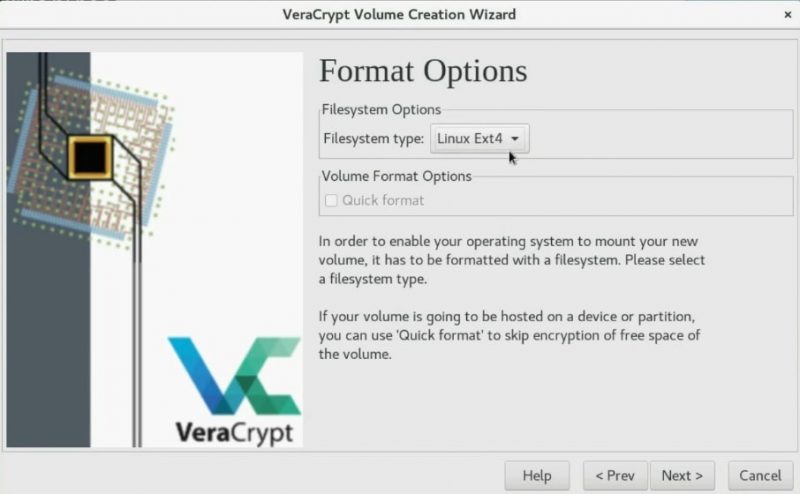 Choose the filesystem type for the volume In the next screen, you can choose if you want to mount this encrypted volume on different systems or only on Linux. The former option enables cross-platform compatibility of the encrypted volume. 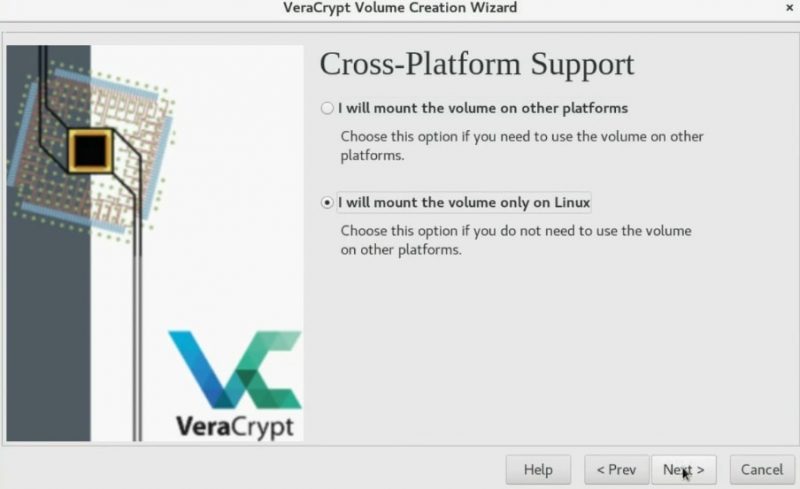 Veracrypt encryption can have the Cross-platform support === Encrypting the volume=== To encrypt the volume, you need to generate some randomness by moving your mouse as random as possible in the next screen. So, wait until the bar is completely filled. Next, click on the _Format_ button. 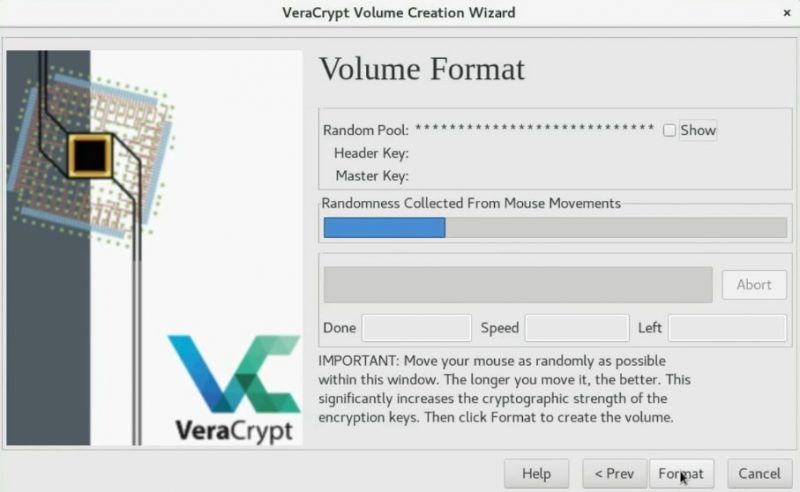 Encrypting the volume You may also need to type your root password during this process. 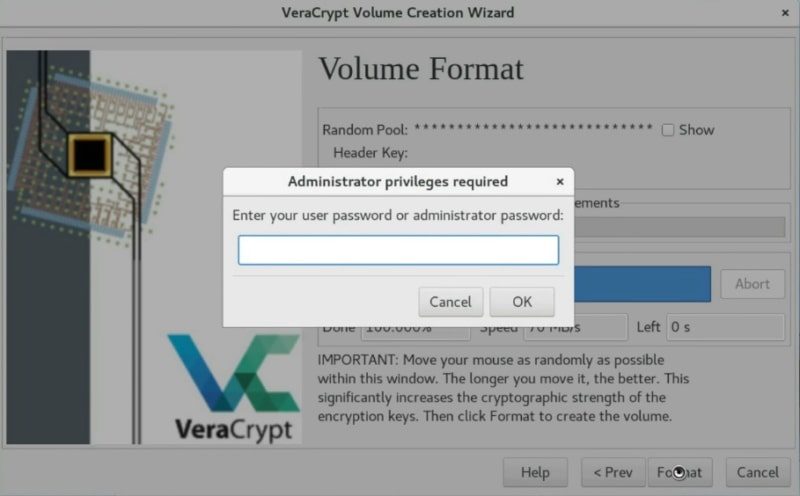 The administrator password is required In the end, you should see the screen saying that the volume has been successfully created. So, you can start using this Linux graphical encryption program. 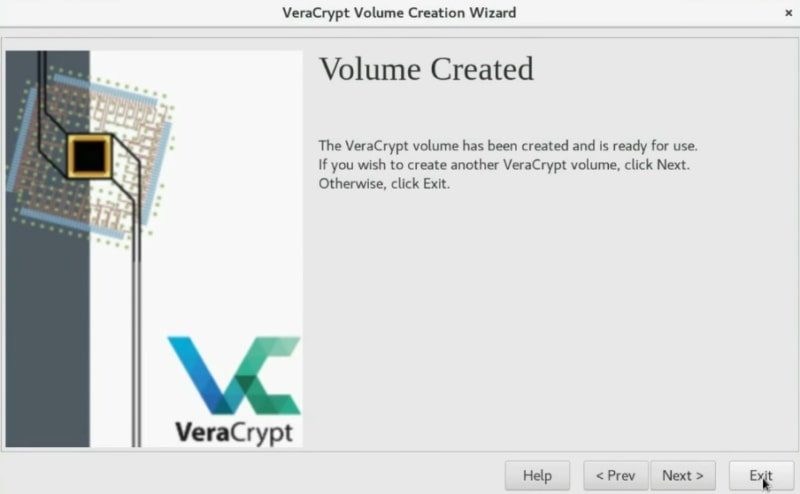 Volume created successfully
Summary:
Please note that all contributions to KB42 may be edited, altered, or removed by other contributors. If you do not want your writing to be edited mercilessly, then do not submit it here.
You are also promising us that you wrote this yourself, or copied it from a public domain or similar free resource (see
KB42:Copyrights
for details).
Do not submit copyrighted work without permission!
Cancel
Editing help
(opens in new window)
Navigation
Navigation
Main page
Recent changes
Random page
Help about MediaWiki
DONATE
Wiki tools
Wiki tools
Special Pages
Categories
Import Pages
Cargo data
Page tools
Page tools
User page tools
More
What links here
Related changes
Page information
Page logs