
Linux graphical encryption program: Difference between revisions
No edit summary |
No edit summary |
||
| (3 intermediate revisions by the same user not shown) | |||
| Line 1: | Line 1: | ||
https://averagelinuxuser.com/linux-gui-encryption/ | |||
'''Also Read:''' [[Stop Using Passwords]] | |||
<big>VeraCrypt is probably the most user-friendly and the most flexible Linux graphical encryption program. So, in this post, I will show you how to use it.</big> | |||
== INTRODUCTION== | |||
I previously showed you [how to encrypt the hard drive in Linux with a command line tool](https://averagelinuxuser.com/encrypt-hard-drive-in-linux/), in this post, I will show you how to make encryption in Linux with a beautiful graphical program. This program is called _VeraCrypt_. | I previously showed you [how to encrypt the hard drive in Linux with a command line tool](https://averagelinuxuser.com/encrypt-hard-drive-in-linux/), in this post, I will show you how to make encryption in Linux with a beautiful graphical program. This program is called _VeraCrypt_. | ||
=== VeraCrypt - the best Linux graphical encryption program=== | |||
If you used the encryption on Linux before, you probably have heard about the program _[TrueCrypt](http://truecrypt.sourceforge.net/)_. If you have not, TrueCrypt was a graphical utility for encrypting folders and partitions to protect your data. However, it is not secure anymore and it is not developed anymore. _VeraCrypt_ is a current alternative of TrueCrypt. | If you used the encryption on Linux before, you probably have heard about the program _[TrueCrypt](http://truecrypt.sourceforge.net/)_. If you have not, TrueCrypt was a graphical utility for encrypting folders and partitions to protect your data. However, it is not secure anymore and it is not developed anymore. _VeraCrypt_ is a current alternative of TrueCrypt. | ||
| Line 18: | Line 15: | ||
_VeraCrypt_ is an open source software application, which serves to encrypt and hide data that a user considers confidential. It uses fairly current and secure encryption protocols. And for me, it is the best Linux graphical encryption program. | _VeraCrypt_ is an open source software application, which serves to encrypt and hide data that a user considers confidential. It uses fairly current and secure encryption protocols. And for me, it is the best Linux graphical encryption program. | ||
== VIDEO TUTORIAL== | |||
<iframe src="https://www.youtube.com/embed/cFipj_GOWjU" width="720" height="480" allowfullscreen=""></iframe> | <iframe src="https://www.youtube.com/embed/cFipj_GOWjU" width="720" height="480" allowfullscreen=""></iframe> | ||
== How to install VeraCrypt== | |||
First, download the Linux version from the official _[VeraCrypt](https://www.veracrypt.fr/en/Downloads.html)_ [website](https://www.veracrypt.fr/en/Downloads.html). By the way, _VeraCrypt_ is cross-platform, so, you can install it on Windows, Linux, Mac OS, and FreeBSD. | First, download the Linux version from the official _[VeraCrypt](https://www.veracrypt.fr/en/Downloads.html)_ [website](https://www.veracrypt.fr/en/Downloads.html). By the way, _VeraCrypt_ is cross-platform, so, you can install it on Windows, Linux, Mac OS, and FreeBSD. | ||
| Line 58: | Line 55: | ||
 |  | ||
Installing VeraCrypt | ===Installing VeraCrypt=== | ||
Next, it is necessary to accept the license terms. Type _yes_ to accept. | Next, it is necessary to accept the license terms. Type _yes_ to accept. | ||
| Line 80: | Line 77: | ||
The VeraCrypt main window | The VeraCrypt main window | ||
== Create an encrypted VeraCrypt volume== | |||
Now it is time to create a _VeraCrypt_ volume. Click on the _Create Volume_ button. | Now it is time to create a _VeraCrypt_ volume. Click on the _Create Volume_ button. | ||
| Line 86: | Line 83: | ||
You can just create an encrypted file container. In short, it is a virtual folder which is encrypted. Or you can also encrypt the whole partition or the whole drive. Choose whatever you want the principle is basically similar for the two options. In this example, I will just create an encrypted container. | You can just create an encrypted file container. In short, it is a virtual folder which is encrypted. Or you can also encrypt the whole partition or the whole drive. Choose whatever you want the principle is basically similar for the two options. In this example, I will just create an encrypted container. | ||
===Create an encrypted container=== | |||
 |  | ||
| Line 116: | Line 113: | ||
Define the volume size | Define the volume size | ||
=== Choose a security level (password, PIM, keyfile)=== | |||
Now, it is time to define your password. It will be used to decrypt the volume. You have to define a very strong one. | Now, it is time to define your password. It will be used to decrypt the volume. You have to define a very strong one. | ||
| Line 126: | Line 123: | ||
Usually, setting a password is secure enough. However, if you want to be your encryption as secure as possible, you can also enable the PIM option, this means you just need to specify a specific number during the mounting process. I never use it. If you want more security I recommend you to use a key file. This is a very useful option. So, I will create a KeyFile to show you the process. | Usually, setting a password is secure enough. However, if you want to be your encryption as secure as possible, you can also enable the PIM option, this means you just need to specify a specific number during the mounting process. I never use it. If you want more security I recommend you to use a key file. This is a very useful option. So, I will create a KeyFile to show you the process. | ||
==== Create a KeyFile==== | |||
To create a key file, just click on the _Generate random key file_ button. | To create a key file, just click on the _Generate random key file_ button. | ||
| Line 162: | Line 159: | ||
You can continue the volume creation | You can continue the volume creation | ||
=== Choosing a new filesystem for the volume=== | |||
Using a Linux graphical encryption program, you can set the file system for the new volume system. So, If you are going to mount the volume in Windows and Linux, you should choose FAT, but if you will only use it for Linux you can choose EXT4. | Using a Linux graphical encryption program, you can set the file system for the new volume system. So, If you are going to mount the volume in Windows and Linux, you should choose FAT, but if you will only use it for Linux you can choose EXT4. | ||
| Line 176: | Line 173: | ||
Veracrypt encryption can have the Cross-platform support | Veracrypt encryption can have the Cross-platform support | ||
=== Encrypting the volume=== | |||
To encrypt the volume, you need to generate some randomness by moving your mouse as random as possible in the next screen. So, wait until the bar is completely filled. Next, click on the _Format_ button. | To encrypt the volume, you need to generate some randomness by moving your mouse as random as possible in the next screen. So, wait until the bar is completely filled. Next, click on the _Format_ button. | ||
| Line 196: | Line 193: | ||
Volume created successfully | Volume created successfully | ||
== Mounting the newly created volume to test it== | |||
After you created the encrypted volume, you need to mount it. First, we need to select the volume. So, click on the _Select File_ option. | After you created the encrypted volume, you need to mount it. First, we need to select the volume. So, click on the _Select File_ option. | ||
| Line 208: | Line 205: | ||
 |  | ||
Search for the newly created volume | ===Search for the newly created volume=== | ||
After that, you need to select where you want to mount it. Just select the first slot and click on the _Mount_ button. | After that, you need to select where you want to mount it. Just select the first slot and click on the _Mount_ button. | ||
| Line 214: | Line 211: | ||
 |  | ||
Mounting the volume | ===Mounting the volume=== | ||
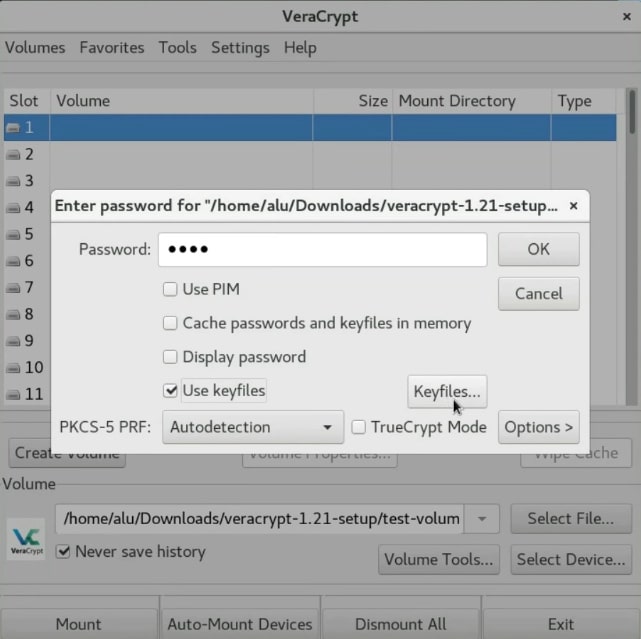
In this screen, you have to enter the password you used for your encryption. If you encrypted this container with a keyfile, specify it here too. As you remember, I created the key file, so I will mark the _Use keyfiles_ option and add the _keyfile_. | In this screen, you have to enter the password you used for your encryption. If you encrypted this container with a keyfile, specify it here too. As you remember, I created the key file, so I will mark the _Use keyfiles_ option and add the _keyfile_. | ||
| Line 220: | Line 217: | ||
 |  | ||
Selecting the keyfile | ===Selecting the keyfile=== | ||
After that, the volume should mount to the `/media` folder. | After that, the volume should mount to the `/media` folder. | ||
| Line 236: | Line 233: | ||
And there is the encrypted volume. You can copy all the files you want to encrypt to this _veracrypt1_ folder. | And there is the encrypted volume. You can copy all the files you want to encrypt to this _veracrypt1_ folder. | ||
== Unmounting the encrypted volume== | |||
After you finished placing the information to the encrypted volume, you have to close the file manager and unmount it. | After you finished placing the information to the encrypted volume, you have to close the file manager and unmount it. | ||
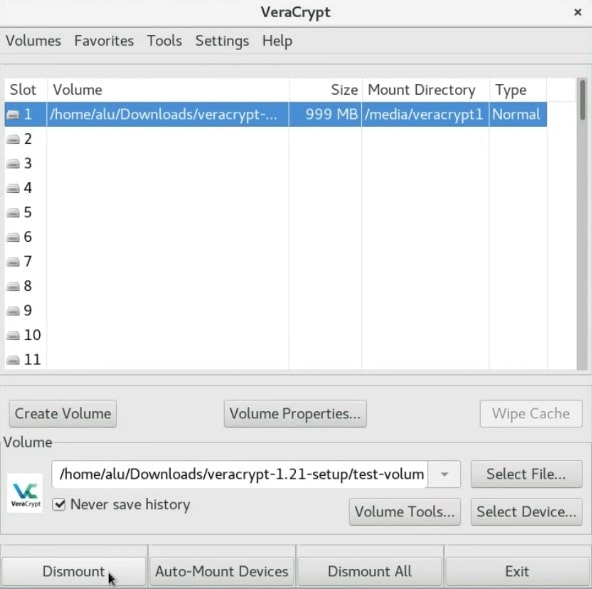
| Line 244: | Line 241: | ||
 |  | ||
Dismounting the volume | ===Dismounting the volume=== | ||
Then, you can close the program by clicking on the _Exit_ button. | Then, you can close the program by clicking on the _Exit_ button. | ||
| Line 252: | Line 249: | ||
Close the program | Close the program | ||
== Uninstall VeraCrypt== | |||
If you no longer want to use _VeraCrypt_ and need to uninstall it, first enter to the Veracrypt folder and run the following command in the terminal. | If you no longer want to use _VeraCrypt_ and need to uninstall it, first enter to the Veracrypt folder and run the following command in the terminal. | ||
| Line 262: | Line 259: | ||
 |  | ||
Uninstalling Veracrypt using the terminal | ===Uninstalling Veracrypt using the terminal=== | ||
You will need to enter your password and _VeraCrypt_ will be removed from your system. | You will need to enter your password and _VeraCrypt_ will be removed from your system. | ||
== CONCLUSION== | |||
_VeraCrypt_ is a great program not only because it has a graphical interface but also because it is a very powerful encryption tool. I highly recommend you to use it. You can create an encrypted file container, encrypt a whole hard drive or if you want to make your data very secure, you can also [create a hidden encrypted partition](http://averagelinuxuser.com/veracrypt-encrypt-usb-linux/). | _VeraCrypt_ is a great program not only because it has a graphical interface but also because it is a very powerful encryption tool. I highly recommend you to use it. You can create an encrypted file container, encrypt a whole hard drive or if you want to make your data very secure, you can also [create a hidden encrypted partition](http://averagelinuxuser.com/veracrypt-encrypt-usb-linux/). | ||
So, do you know another Linux graphical encryption program? Let me now on the comments section. | So, do you know another Linux graphical encryption program? Let me now on the comments section. | ||
{{article summary | |||
| image = | |||
| title = {{%PAGENAME%}} | |||
| summary = VeraCrypt is probably the most user-friendly and the most flexible Linux graphical encryption program. So, in this post, I will show you how to use it. | |||
}} | |||
[[Category:Technology]] | |||
[[Category:Computers]] | |||
[[Category:Encryption]] | |||
[[Category:Privacy]] | |||
Latest revision as of 15:31, 14 February 2024
https://averagelinuxuser.com/linux-gui-encryption/
Also Read: Stop Using Passwords
VeraCrypt is probably the most user-friendly and the most flexible Linux graphical encryption program. So, in this post, I will show you how to use it.
INTRODUCTION
[edit | edit source]I previously showed you [how to encrypt the hard drive in Linux with a command line tool](https://averagelinuxuser.com/encrypt-hard-drive-in-linux/), in this post, I will show you how to make encryption in Linux with a beautiful graphical program. This program is called _VeraCrypt_.
VeraCrypt - the best Linux graphical encryption program
[edit | edit source]If you used the encryption on Linux before, you probably have heard about the program _[TrueCrypt](http://truecrypt.sourceforge.net/)_. If you have not, TrueCrypt was a graphical utility for encrypting folders and partitions to protect your data. However, it is not secure anymore and it is not developed anymore. _VeraCrypt_ is a current alternative of TrueCrypt.
_VeraCrypt_ is an open source software application, which serves to encrypt and hide data that a user considers confidential. It uses fairly current and secure encryption protocols. And for me, it is the best Linux graphical encryption program.
VIDEO TUTORIAL
[edit | edit source]<iframe src="https://www.youtube.com/embed/cFipj_GOWjU" width="720" height="480" allowfullscreen=""></iframe>
How to install VeraCrypt
[edit | edit source]First, download the Linux version from the official _[VeraCrypt](https://www.veracrypt.fr/en/Downloads.html)_ [website](https://www.veracrypt.fr/en/Downloads.html). By the way, _VeraCrypt_ is cross-platform, so, you can install it on Windows, Linux, Mac OS, and FreeBSD.
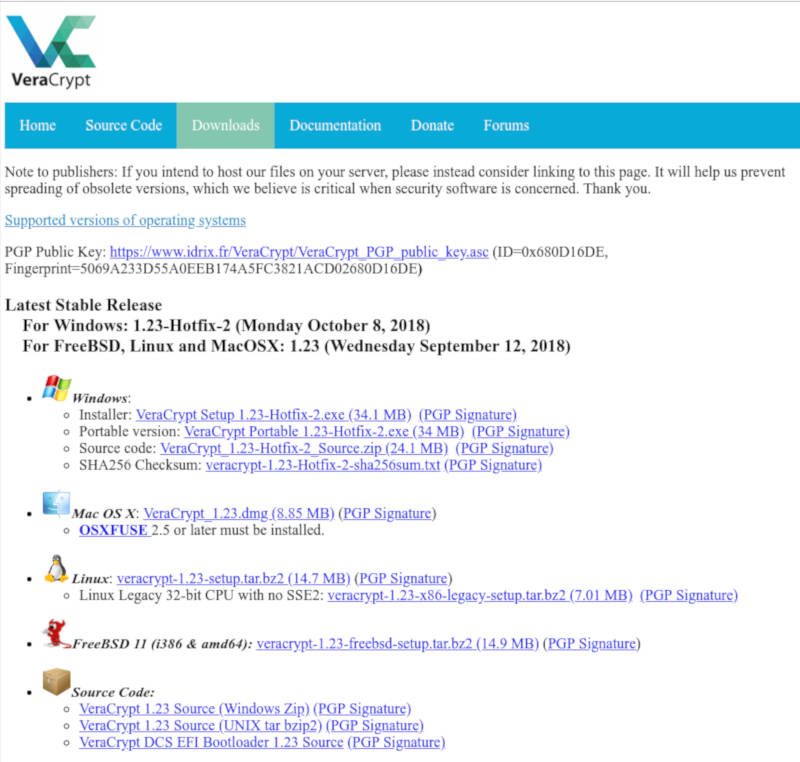
VeraCrypt Download page
Then, open your file browser, select the downloaded file and right click on it and extract the archive.
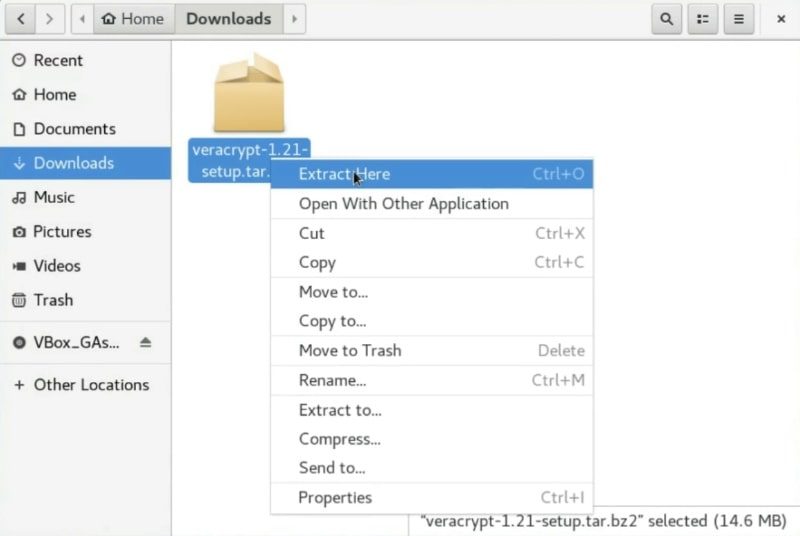
Extract the downloaded file
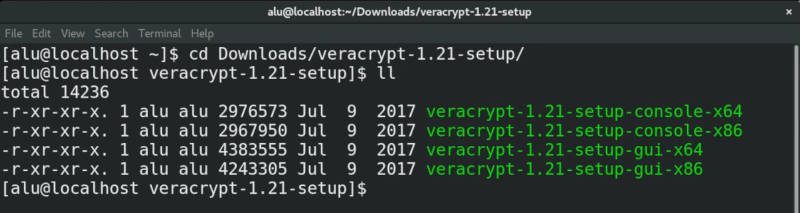
Open a terminal and change the current directory to the folder generated by the decompression and list all the files.
``` cd Downloads/veracrypt-*-setup/ ls -l ```
List the Veracrypt downloaded files
Among all the files, you should see a file with `gui` in its name. There are two such files one is for 32 and the other one is for 64-bit systems. I believe most users nowadays use x64 systems.
So, to start the installation, you run this command:
``` sudo ./veracrypt-X.XX-setup-gui-x64 ```
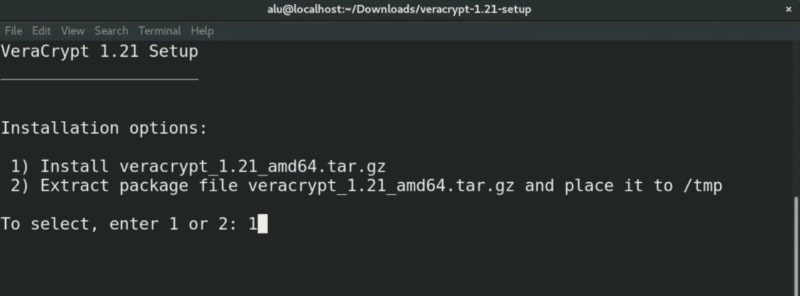
Then, you have to choose the installation option. Type 1 to install _Veracrypt_.

Installing VeraCrypt
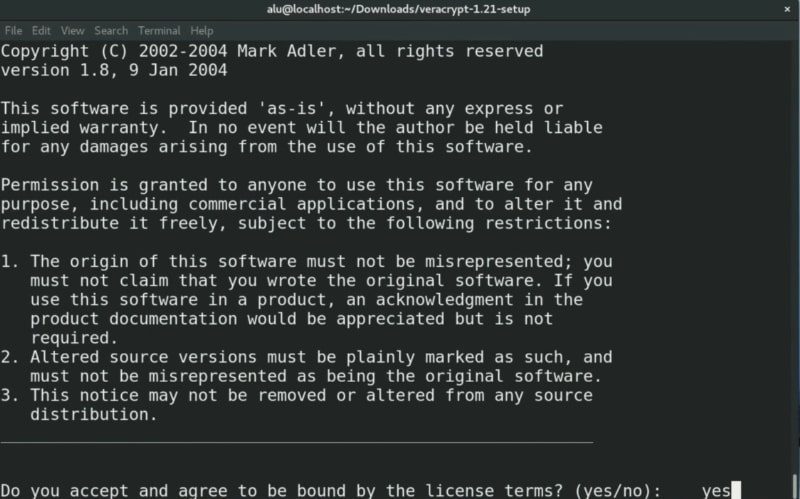
[edit | edit source]Next, it is necessary to accept the license terms. Type _yes_ to accept.
Veracrypt License terms
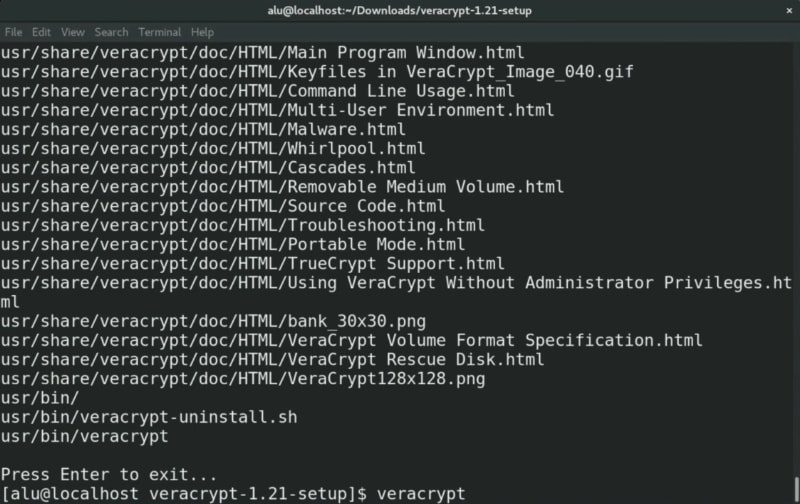
After accepting the license terms, the program will start the installation. In the end, you should see a message on the terminal saying _Press Enter_ to exit.
Veracrypt has been installed successfully
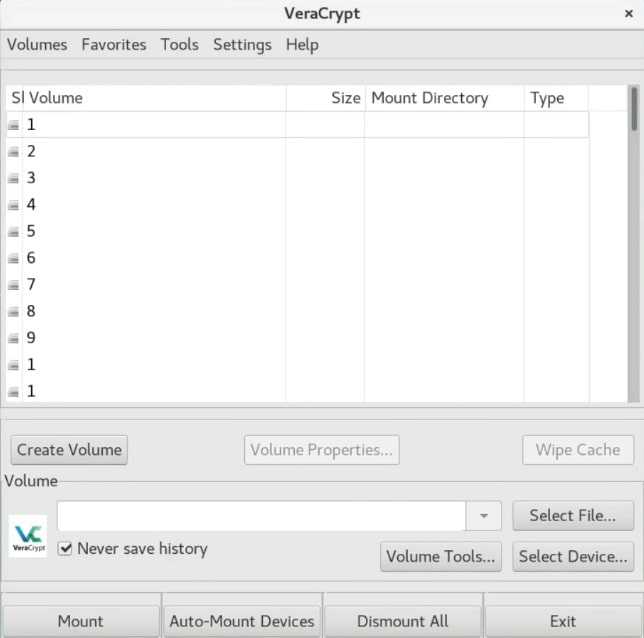
To run it, just type `veracrypt` from your terminal and press enter. Of course, you can also launch it from the main menu of your system.
This is what the program looks like once you have started it. It is a very simple interface but it is very powerful.
The VeraCrypt main window
Create an encrypted VeraCrypt volume
[edit | edit source]Now it is time to create a _VeraCrypt_ volume. Click on the _Create Volume_ button.
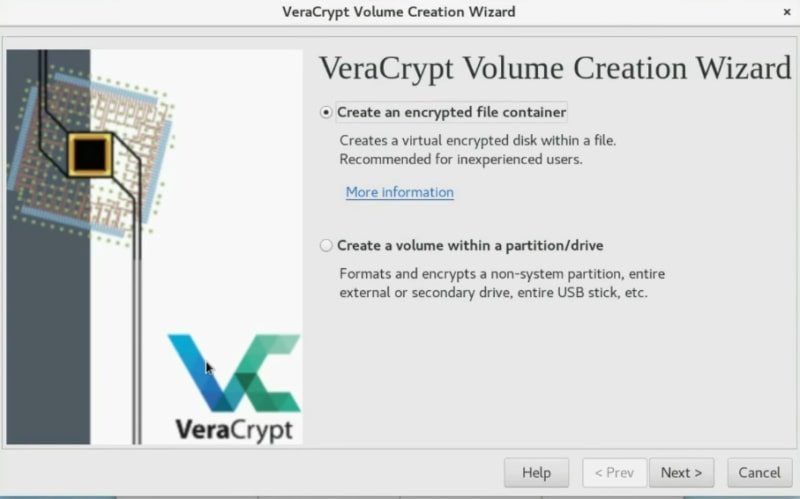
You can just create an encrypted file container. In short, it is a virtual folder which is encrypted. Or you can also encrypt the whole partition or the whole drive. Choose whatever you want the principle is basically similar for the two options. In this example, I will just create an encrypted container.
Create an encrypted container
[edit | edit source]
Veracrypt options: an encrypted file container or an encrypted partition/drive
In the next screen, I suggest you use a standard _VeraCrypt_ volume but if you want more security, you can use the hidden volume option. I will choose to create a Standard VeraCrypt volume.
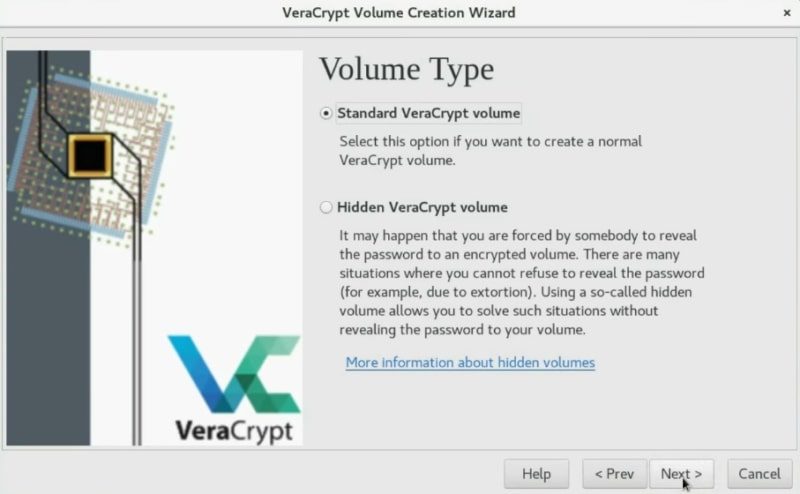
Choose the Veracrypt volume type
In this section, you have to select where you want this encrypted volume to be located. Click on the _Select File_ button and set the place and name. After that, click on the _Next_ button.
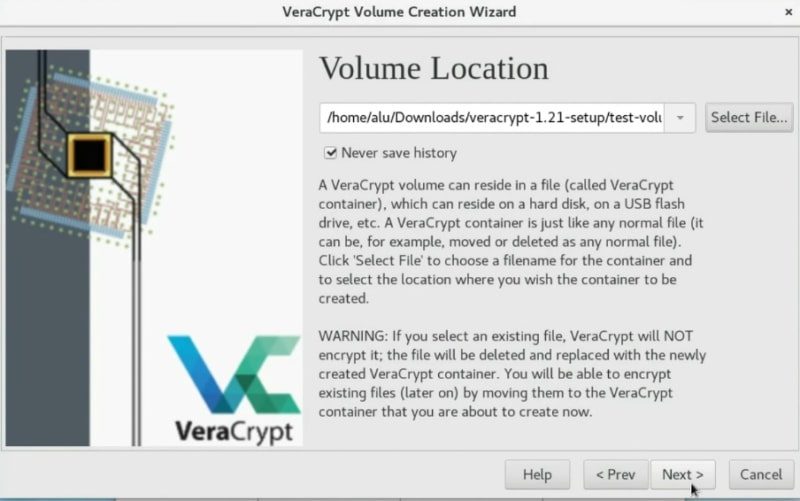
Set the Veracrypt Volume Location
VeraCrypt provides several encryption algorithms like AES, Twofish or Camellia. I usually choose AES. This should be secure enough. Click on the _Next_ button.
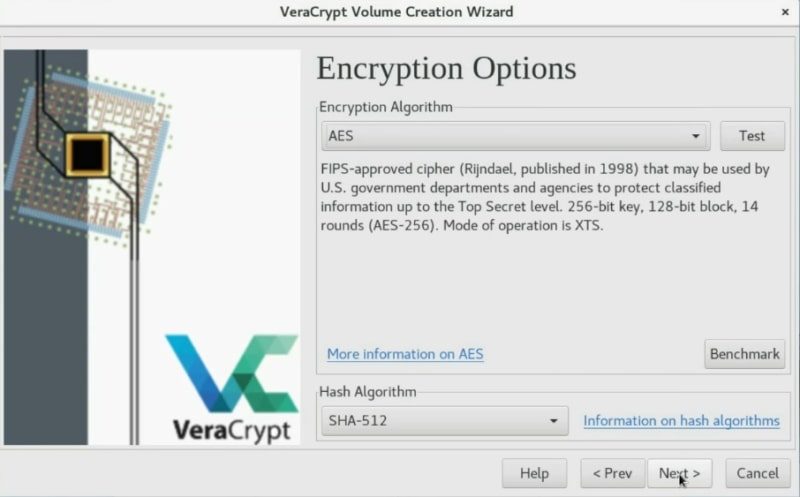
Select the algorithm encryption for the volume
Now, you have to define the space of the container. Veracrypt shows you how much disk space is available and you can create a volume of this size or smaller. In my case, I will create a 1Gb volume.
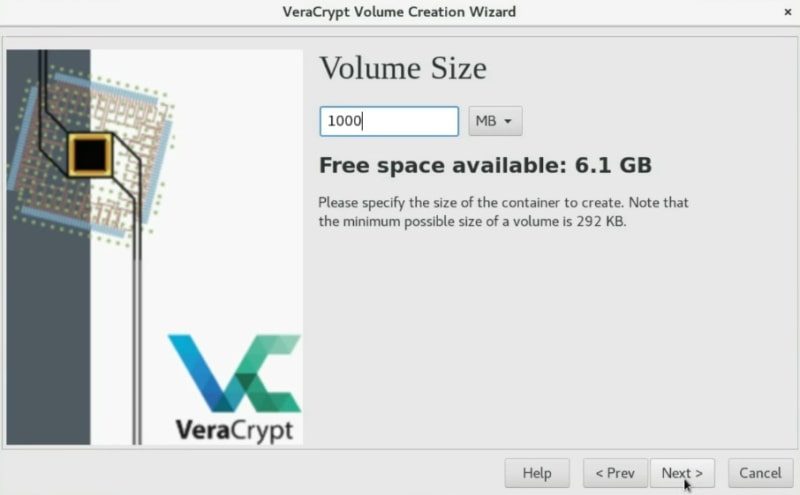
Define the volume size
Choose a security level (password, PIM, keyfile)
[edit | edit source]Now, it is time to define your password. It will be used to decrypt the volume. You have to define a very strong one.
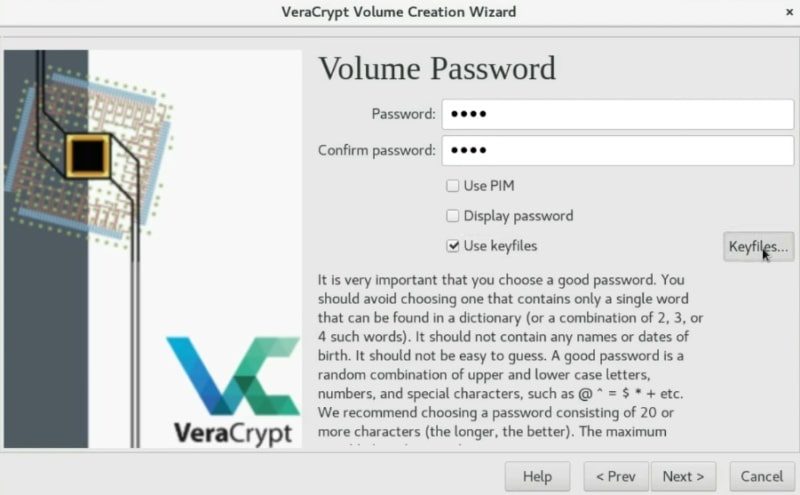
Set a volume password and the keyfile to decrypt the volume
Usually, setting a password is secure enough. However, if you want to be your encryption as secure as possible, you can also enable the PIM option, this means you just need to specify a specific number during the mounting process. I never use it. If you want more security I recommend you to use a key file. This is a very useful option. So, I will create a KeyFile to show you the process.
Create a KeyFile
[edit | edit source]To create a key file, just click on the _Generate random key file_ button.
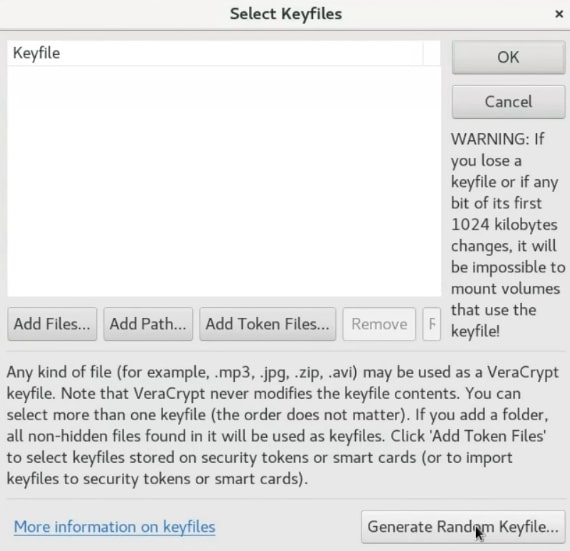
Generate a random keyfile
You need to move your mouse randomly as much as possible to create some random numbers which will be stored in this key file. You can move it until the Randomness bar is completely full. After that, you give it a name, click on the _Generate and Save Keyfile_ option and choose a place to save it.
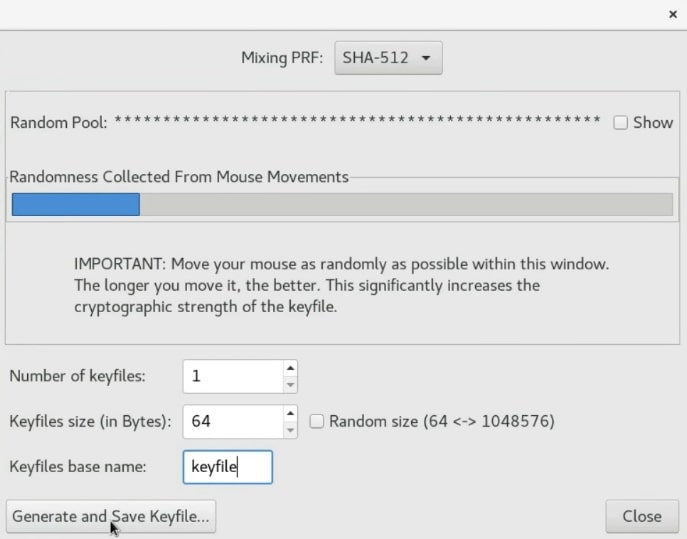
Now, you can generate and save the keyfile
Once the keyfile is created, it is necessary to add it to the volume so that they are connected. Normally, the keyfile is generated in the same directory where VeraCrypt is located. In this case, `/home/alu/Download/`. So, Click on the _add_ button and select the keyfile.
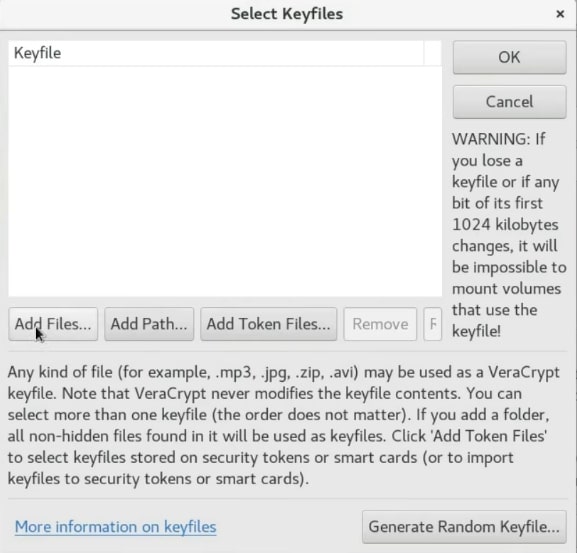
Add the keyfile to the volume
Next, press the OK button.
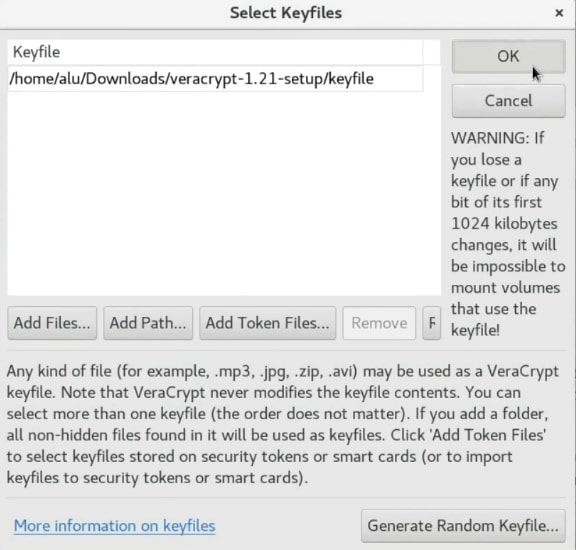
Press the ok button to add the keyfile
Now, to unencrypt this volume you have to use the password and in addition to this, you also need to use a key file. I recommend storing the keyfile on your USB drive, for greater security.
_NOTE that If you lose your key file you will not be able to unencrypt this volume. So, make sure you have a backup of this key file._
Next, click on the _Next_ button.
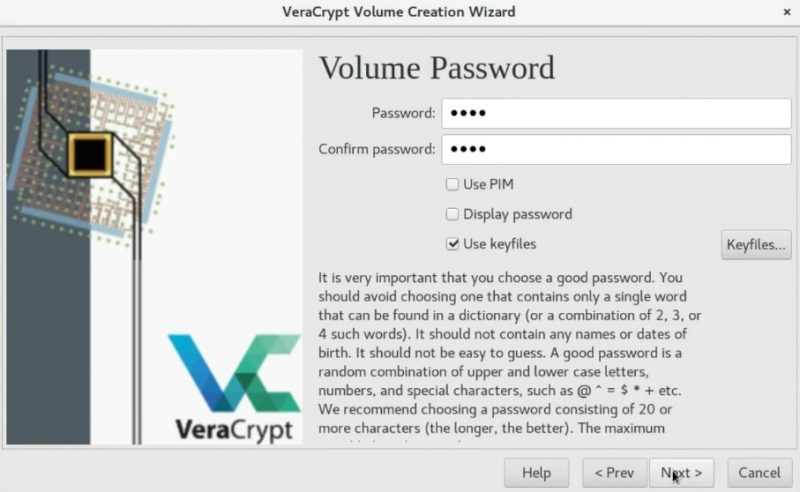
You can continue the volume creation
Choosing a new filesystem for the volume
[edit | edit source]Using a Linux graphical encryption program, you can set the file system for the new volume system. So, If you are going to mount the volume in Windows and Linux, you should choose FAT, but if you will only use it for Linux you can choose EXT4.
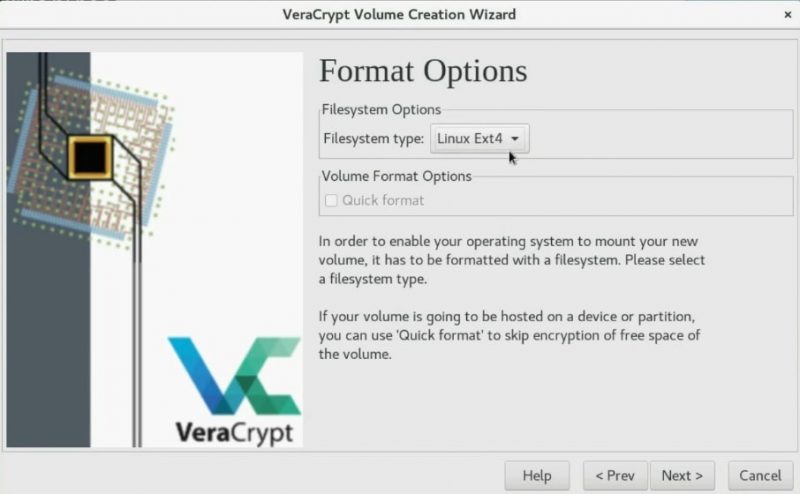
Choose the filesystem type for the volume
In the next screen, you can choose if you want to mount this encrypted volume on different systems or only on Linux. The former option enables cross-platform compatibility of the encrypted volume.
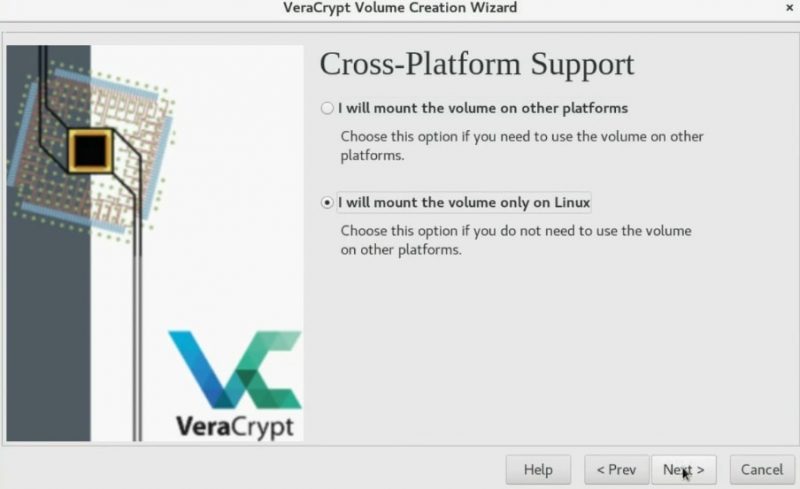
Veracrypt encryption can have the Cross-platform support
Encrypting the volume
[edit | edit source]To encrypt the volume, you need to generate some randomness by moving your mouse as random as possible in the next screen. So, wait until the bar is completely filled. Next, click on the _Format_ button.
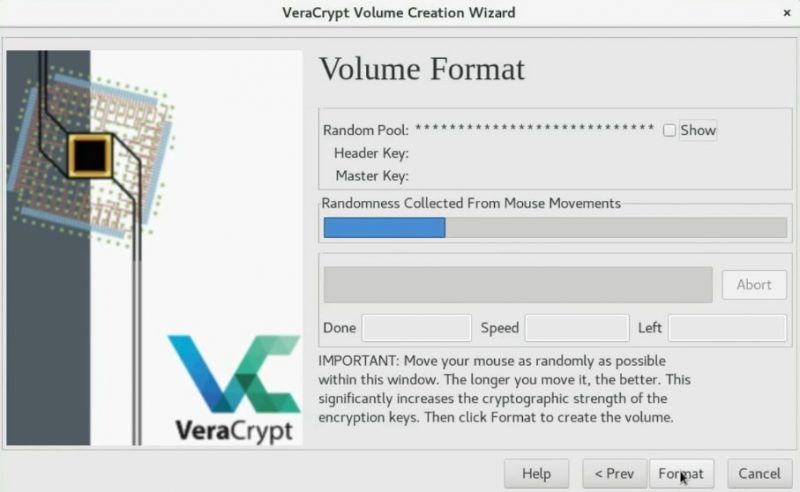
Encrypting the volume
You may also need to type your root password during this process.
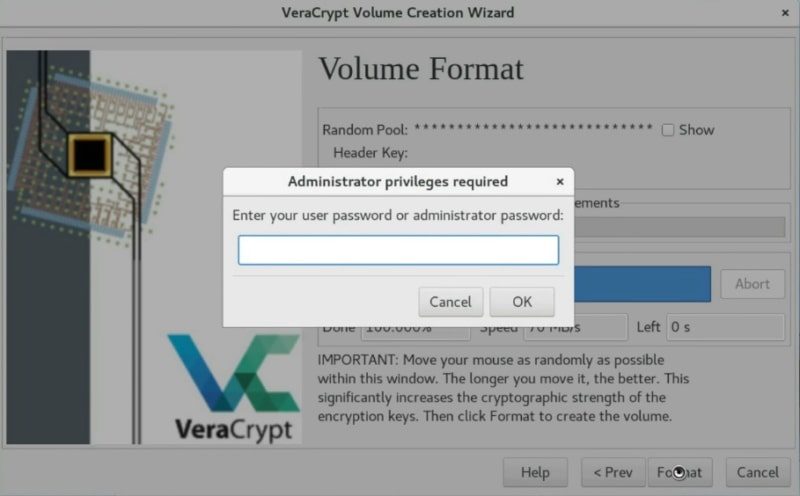
The administrator password is required
In the end, you should see the screen saying that the volume has been successfully created. So, you can start using this Linux graphical encryption program.
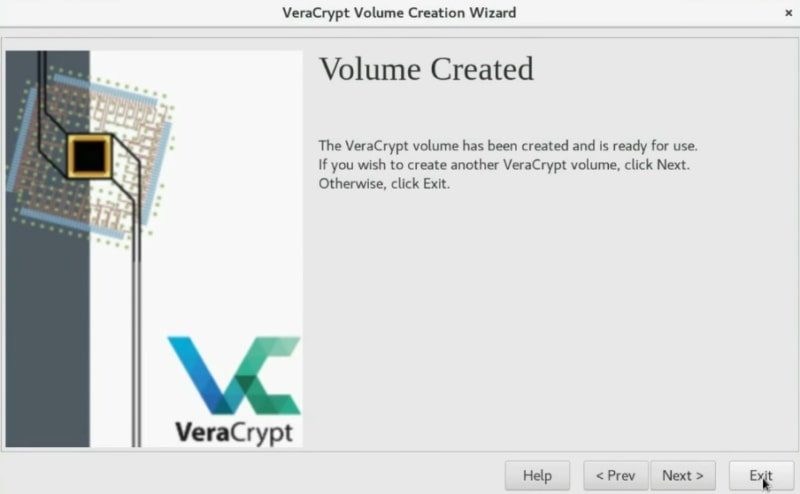
Volume created successfully
Mounting the newly created volume to test it
[edit | edit source]After you created the encrypted volume, you need to mount it. First, we need to select the volume. So, click on the _Select File_ option.
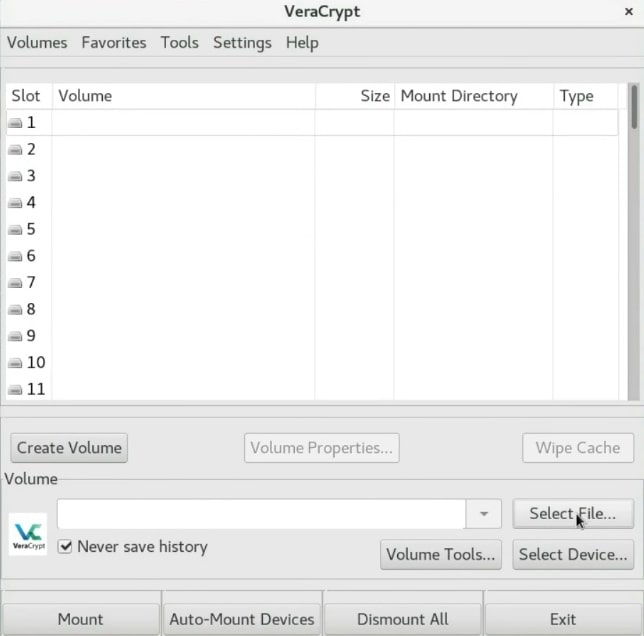
Select the volume file to mount it
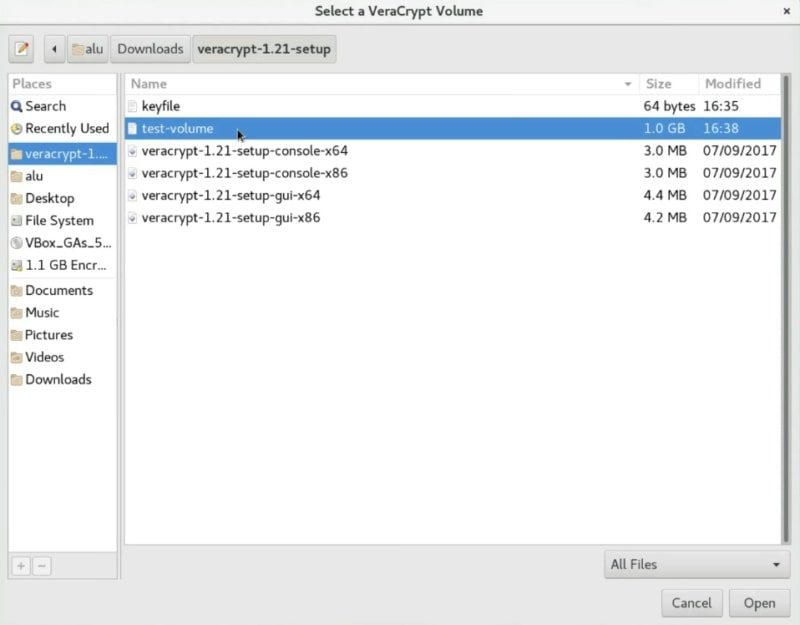
Next, navigate and select your volume.

Search for the newly created volume
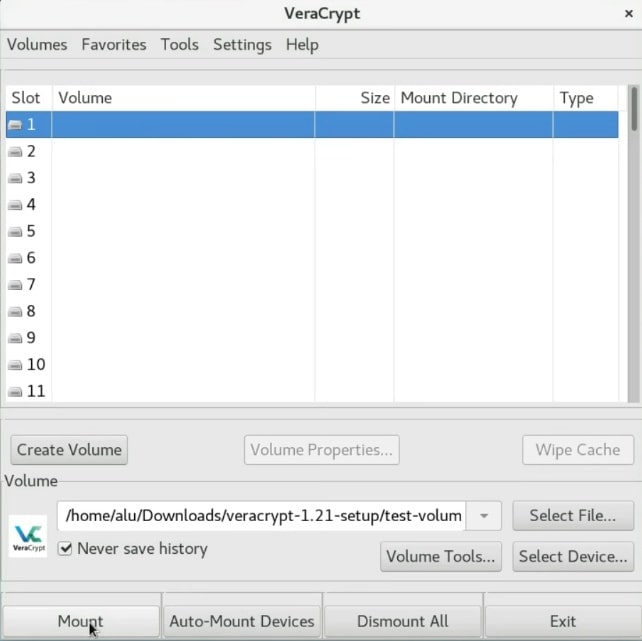
[edit | edit source]After that, you need to select where you want to mount it. Just select the first slot and click on the _Mount_ button.

Mounting the volume
[edit | edit source]In this screen, you have to enter the password you used for your encryption. If you encrypted this container with a keyfile, specify it here too. As you remember, I created the key file, so I will mark the _Use keyfiles_ option and add the _keyfile_.

Selecting the keyfile
[edit | edit source]After that, the volume should mount to the `/media` folder.
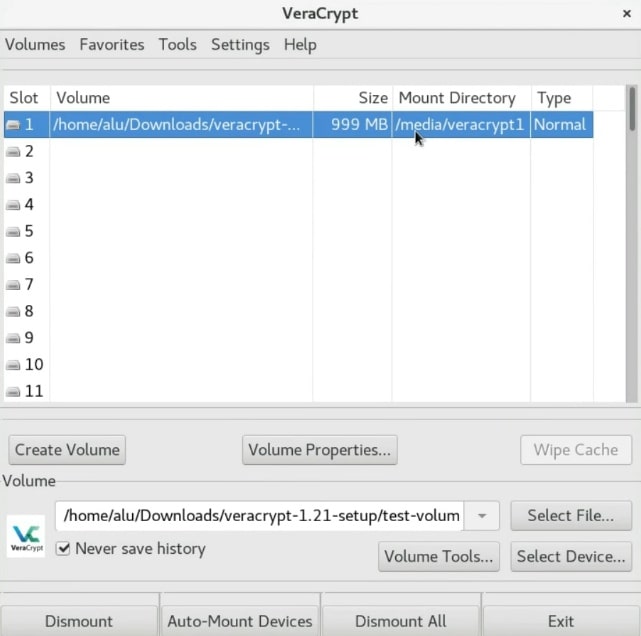
The volume has been successfully mounted
You can see that it is mounted as `/media/veracrypt1` in the _Mount Directory_ column. So, open the file manager and go to `/media/veracrypt1`.
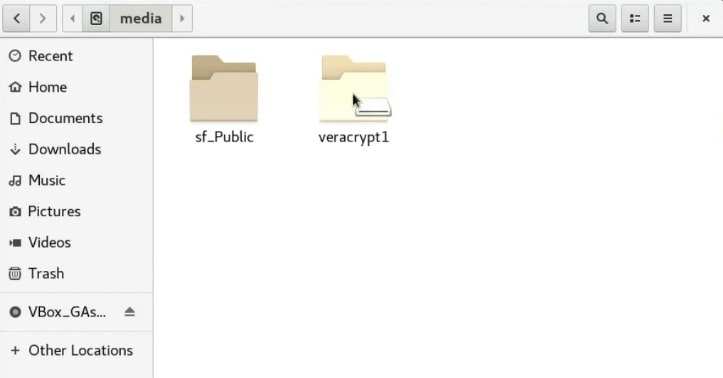
The volume is ready to be used
And there is the encrypted volume. You can copy all the files you want to encrypt to this _veracrypt1_ folder.
Unmounting the encrypted volume
[edit | edit source]After you finished placing the information to the encrypted volume, you have to close the file manager and unmount it.
So, on the _VeraCrypt_ window, select the volume and click on the _Dismount_ button.

Dismounting the volume
[edit | edit source]Then, you can close the program by clicking on the _Exit_ button.
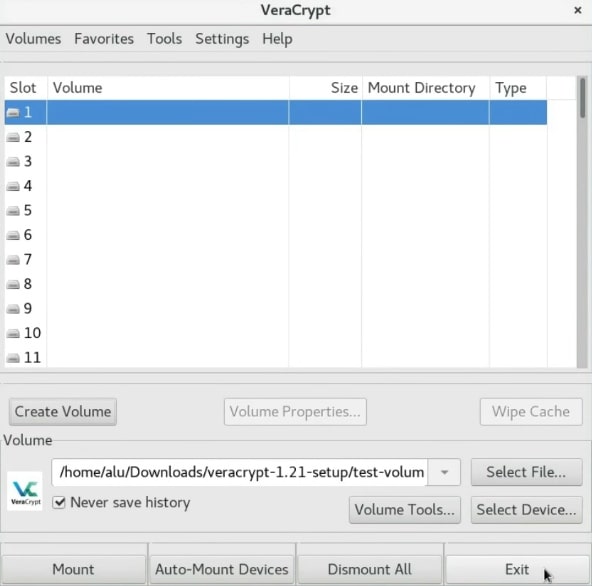
Close the program
Uninstall VeraCrypt
[edit | edit source]If you no longer want to use _VeraCrypt_ and need to uninstall it, first enter to the Veracrypt folder and run the following command in the terminal.
``` sudo veracrypt-uninstall.sh ```

Uninstalling Veracrypt using the terminal
[edit | edit source]You will need to enter your password and _VeraCrypt_ will be removed from your system.
CONCLUSION
[edit | edit source]_VeraCrypt_ is a great program not only because it has a graphical interface but also because it is a very powerful encryption tool. I highly recommend you to use it. You can create an encrypted file container, encrypt a whole hard drive or if you want to make your data very secure, you can also [create a hidden encrypted partition](http://averagelinuxuser.com/veracrypt-encrypt-usb-linux/).
So, do you know another Linux graphical encryption program? Let me now on the comments section.

































