
Backing up MySQL Database Hosted in Docker Container
Introduction
In posting [Creating MySQL Image with Docker File](https://jojozhuang.github.io/architecture/creating-mysql-image-with-docker-file/), we created MySQL image `jojozhuang/jspmysql` with Dockerfile, and used this image to run MySQL container. The issue is MySQL image doesn’t persist data. Initially, in this MySQL container, there are three rows in table `Product`. If you make some changes(eg. add new product), and create new image based on this container, these changes won’t be restored to the new image, they are lost. So each time before creating a new image for MySQL container, we need to backup the database first.
MySQL Database Backup
General Backup Approaches in MySQL
Some general methods for making backups in MySQL.
- Making Backups with mysqldump - Making Backups by Copying Table Files - Making a Hot Backup with MySQL Enterprise Backup - Making Delimited-Text File Backups - …
We will focus on `mysqldump`.
Dumping Data in SQL Format with mysqldump
Dump all databases and save to file.
```raw $ mysqldump --all-databases > dump.sql ```
Dump only specific databases and save to file.
```raw $ mysqldump --databases db1 db2 db3 > dump.sql ```
Using mysqldump for MySQL Container
Dump specific database in container. The format looks as follows.
```raw $ docker exec CONTAINER /usr/bin/mysqldump -u root --password=PASSWORD DATABASE > backup.sql ```
Backing up and Restoring
Dump Database
Check the container id.
```raw $ docker ps CONTAINER ID IMAGE COMMAND CREATED STATUS PORTS NAMES f91d97a62086 jspmysql:0.1 "docker-entrypoint..." 28 minutes ago Up 28 minutes 0.0.0.0:6603->3306/tcp jspmysql ```
Execute `mysqldump` in docker terminal.
```raw $ docker exec f91d97a62086 /usr/bin/mysqldump -u root --password=jsppassword jsptutorial > backup.sql ```
Notice `f91d97a62086` is the container id, `jsptutorial` is the database and `backup.sql` is the output file. After running the above command, a new backup.sql file is created. 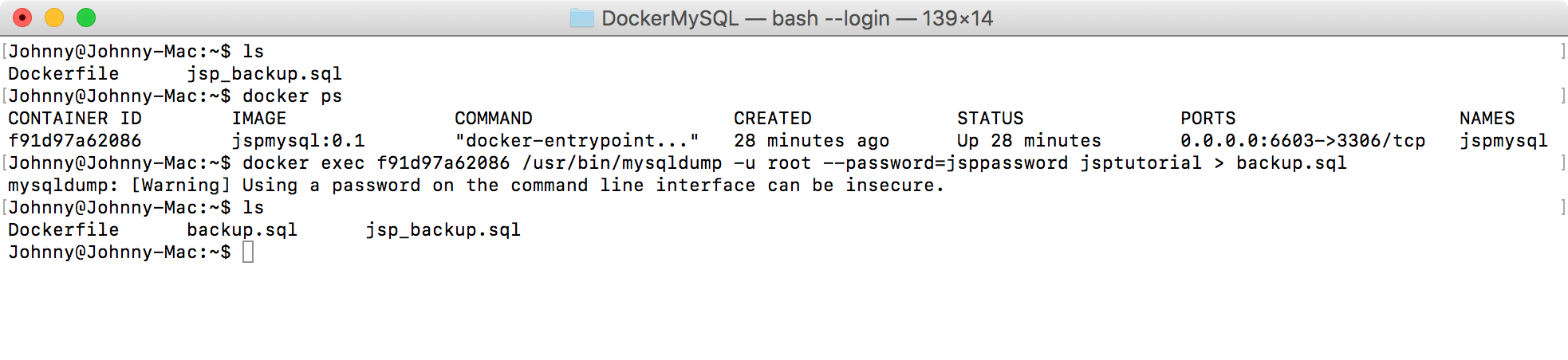
Checking the Output File
Notice that new product `(4,'iPad',399)` is added to the sql for restoring table `Product`. 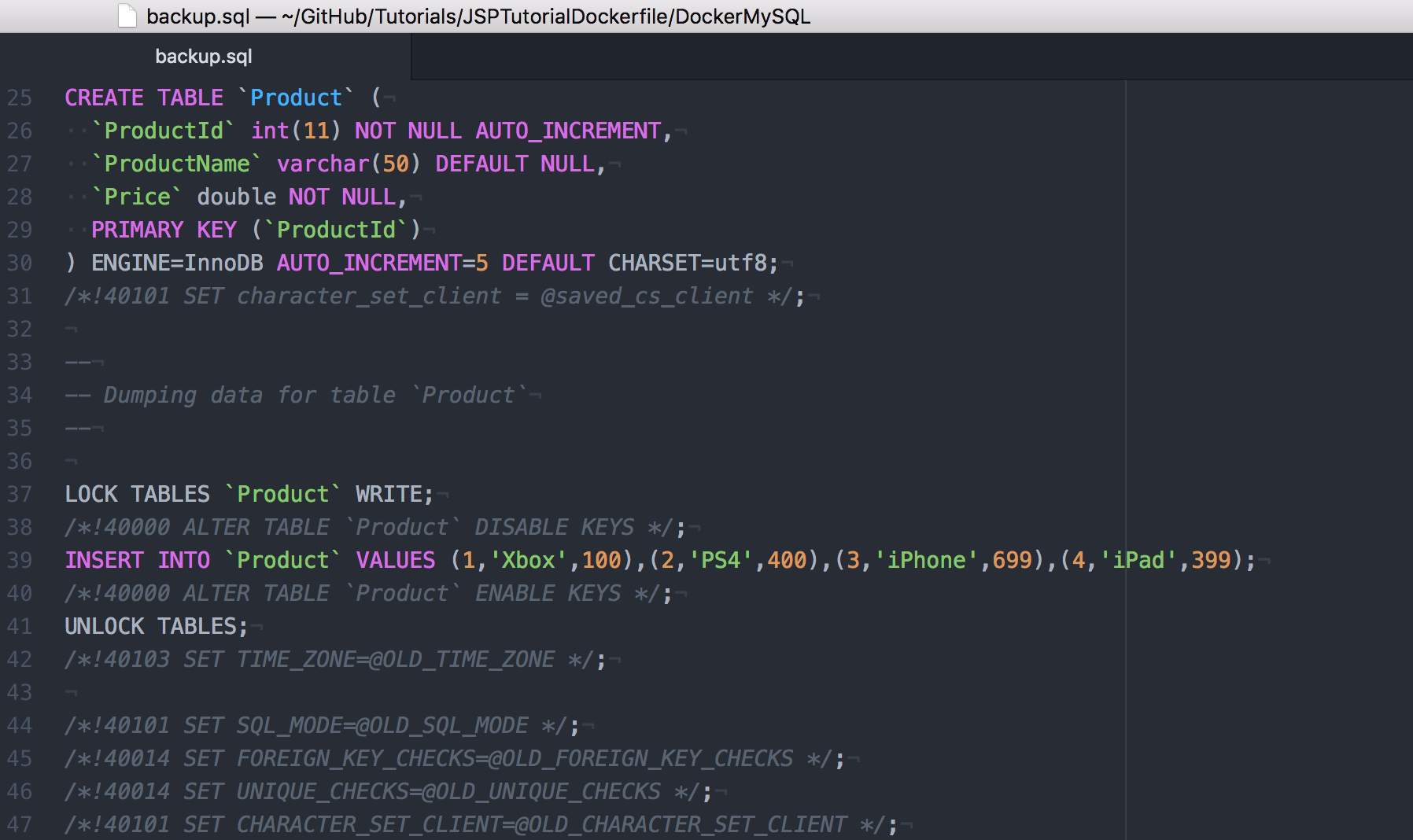 Now you can rename this file to jsp_backup.sql or use it directly in Dockerfile to create MySQL image.
Restoring Data to MySQL Container
You can also restore the data directly to the container. In docker terminal, run the following command.
```raw $ cat backup.sql | docker exec -i f91d97a62086 /usr/bin/mysql -u root --password=jsppassword jsptutorial ```
- 4. Source Files



